


[nextpage title=”Overview and Specifications”]

Microsoft’s first Windows Phone with Dual SIM
The budget-smartphone, Nokia Lumia 630 was launched in June for Middle East and Pakistan during an event in Dubai. Lumia 630 is the first ever Windows Phone with Dual SIM support. We’ve had chances to have a glimpse over this smartphone for couple of time but only for a brief period enough to get some hands-on with the device design. It’s identically same to the 4G/LTE variant of the device, Lumia 635.
Have you gone through the specifications of Lumia 630? Key features are listed below.
SPECIFICATIONS OF LUMIA 630
- Windows Phone 8.1 OS with Lumia Cyan firmware pre-installed.
- Display: 4.5”, Corning® Gorilla® Glass 3, IPS LCD ClearBlack with FWVGA resolution (854 x 480), pixels density of ~221 PPI.
- Processor: Qualcomm Snapdragon 400 chipset with Quad-core 1.2 GHz Cortex A7 processor and Adreno 305 GPU.
- Memory and Storage: 512MB of RAM, 8GB of Mass memory with microSD card support
- Dual SIM and Single SIM variants (your choice)
- Main camera sensor: 5 MP, 4x digital zoom, 720p@30fps, Sensor size: 1/4 inch, f-number/aperture: f/2.4.
- Dimensions: 129.5 mm x Width: 66.7 mm x 9.2 mm, Weight: 134 grams
- USB 2.0, Bluetooth 4.0, WiFi WLAN b/g/n, 3.5 mm Audio Connector.
- Battery: 1830 mAh,
Box and The Content:

The first impression always matters. Leaving the device itself aside, box packaging and the content is also important for someone to conclude their very first decision about the smartphone they are going to buy. Well the box with the Lumia 630 is really good and different than ever before from Nokia (now Microsoft Devices). But the content in it is not that impressive which only include the device and the charger. There is no USB data/connectivity cable or the stereo headset.
If you haven’t already and you can check another session of unboxing of Lumia 630.
[nextpage title=”Hardware, Design and The Build”]
Hardware, Design and The Build:
Lumia 630 is pretty good in hands as it’s only measures 129.5 mm tall and 66.7 mm wide. With a removable back cover the battery is also removable. Running on Windows Phone 8.1 it’s pretty up to the competition to give a good range of apps and games as well as enabling to run Dual SIM support. Lumia 630 as you already know is the very first phone in Windows Phone category that supports dual SIM.

Powered the Snapdragon 400 and 1.2 GHz Quad-core processor, it only have the support to run with 512 MB of RAM. While it gives 8 GB of internal storage, it also provides the option to expand memory via microSD card up to 128 GB.
Handling is perfect for normal hands along with the matte finish on the back cover it’s actually supportive in helping you don’t slip it away. The back side is rather more friendly in handling Lumia 630 than we found the Lumia 520. Specially the hard keys on the right side of Lumia 520 were less friendly to use. That was the quick impression I felt when tried the Lumia 630. This matches mostly to the X family of Android phones from Nokia. Available color options are orange, green, yellow and the most common ones the black and the white. Here we have the white one.

Around the device, the edges are completely flat unlike the rounded edges on Lumia 520. The design elements are simple just like other Windows Phone smartphones specially Lumia. Only what’s missing is the dedicated camera shutter button.
When facing front, on the right side of the phone there are volume control keys and the power or screen lock/unlock key. A camera dedicated shutter button as you found usually on any smartphone or older feature phones from Nokia is not present on the Lumia 630. That was pretty surprising for me at first glance but in fact I missed this a lot of time.


Other side of the Lumia 630 is just empty with no usability but your hand grip of course.
Top side of the device hosts with a 3.5 mm audio connector and likewise the micro USB port is featured at the bottom of the device just like other Lumia range of smartphones.


The rear of the device hosts two common elements of the a smartphone that is camera and the loud speaker. The first deploys on the upper half of the phone while the second element is obvious on the lower half of the phone at a little right-bottom corner on the rear view.


5 megapixels camera is not a PureView camera but just standard/regular camera sensor. That’s also without an LED flash. So outdoor, indoor or in dark you will not have the support of flash for taking photographs.
Hands-on Video:
Front and Display:
The screen on the front serves with a 4.5 inch IPS LCD display that is coated and protected by Gorilla Glass 3. The ClearBlack support into the display is a good deal addition to help with the clarity of display specially outdoors as well as helping the display turn almost completely black when off. However the display resolution is FWVGA (854 x 480) which is actually a non-standard resolution in any phone. We’ll see below what this resolution is about.

At a technical note the display serves the pixels density of approximately 221 PPI. The display size with of 4.5″ with such a low resolution is not much arguable as on Lumia 620 it’s pretty much good and reasonable and the quality of the content (including text and/or images) is delivered with the sharpness with no objection being a budget phone.
Another thing to be considered is that the Lumia 630 does not come with the capacitive navigation keys on the bottom of the bezel as the Windows Phone 8.1 OS don’t need them anymore. They are built-in to the OS itself just just like we saw the Android OS in later versions.

Resolution of 854 x 480 pixels on the display includes the navigation bar of extra 54 pixels in vertical resolution. So the actual working resolution of the display contains 800 pixels tall making it the standard 800 x 480.
Just like being the first ever Dual SIM Windows Phone, the Lumia 630 is also the first Windows Phone without the capacitive navigation keys on the front screen. With a full plain black screen glass on the front it did look good to me. The only earpiece on top with a Nokia branding and mouthpiece at the bottom edge of the glass. There is no front-facing camera on the front for video chat or calling.


There is no visible sensor as well on the top of the screen. Those sensors we usually see on the screen-top are usually be the ambient light sensor and the proximity sensor. Well these sensors are not present on the Lumia 630 being the reason that it can not adjust brightness automatically and you need to just manually between (low, medium and high) according to your environment.
The proximity sensor on the other hand has been a really important component since the touch screen phones and smartphone came into the era. The most important function of the proximity sensor is to turn off the screen and lock it down for touch inputs when a call is in progress to avoid unintentional touch events when you bring your phone near your ears.
Surprisingly the function is still in place with Lumia 630 as the screen does turn off and prevent accidental touch inputs during call but rather in a pretty different fashion. Normally the proximity sensor detects the near object only in front of the sensor on top and the object mostly be your ear. With Lumia 630 it’s detected right from any where on the screen but it has to be large. Your face/cheeks work good as a large object or even your ear is enough large for that object. That case allows you to use touch screen with your fingers if you intentionally want to use the phone during the call.

The display quality of the Lumia 630 with the 4.5″ inch screen is quite good. Colors and contrast is pretty decent on in this price range. Viewing angles are also pretty good indoors. Impressively outdoor visibility in sunlight also performed well to be told here.


[nextpage title=”Software: Windows Phone 8.1, Lumia Cyan”]
Windows Phone 8.1 OS and Lumia 630: Lumia Cyan
Mostly Windows Phone 8.1 OS is for every smartphone running Windows Phone 8. In fact it has already hit most of the devices already. Lumia 630 is however the first smartphone came with the Windows Phone 8.1 pre-loaded as well as Lumia Cyan software update is built-in. As well it’s the first device which introduced most of the new features in the Windows Phone 8.1 uniquely. Two of them are the Dual SIM and the software rendered navigation bar (back, start, search buttons).
[Video] Multitasking on Lumia 630 / Windows Phone 8.1:
Customization is also enhanced in the new OS from Microsoft, if you have read the list of features in the Windows Phone 8.1. Background customization and the start screen customization are two of them. Lock screen can be customized with desired notification items as well as notes from various supported apps like calendar. On the other hand the start screen can be customized with the background behind the tiles that floats as you scroll up and down on the screen.
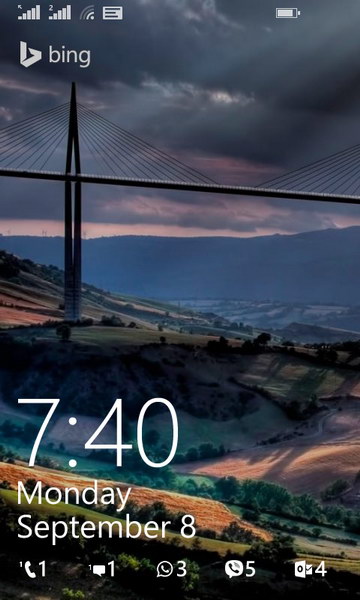
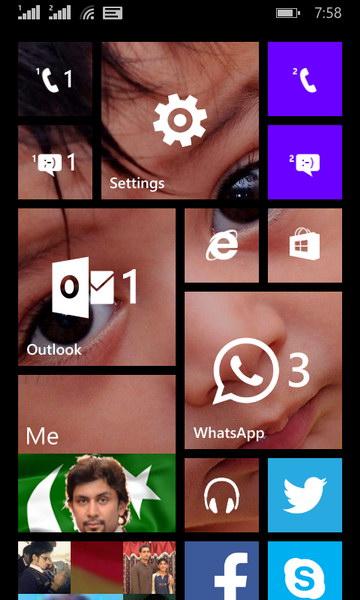
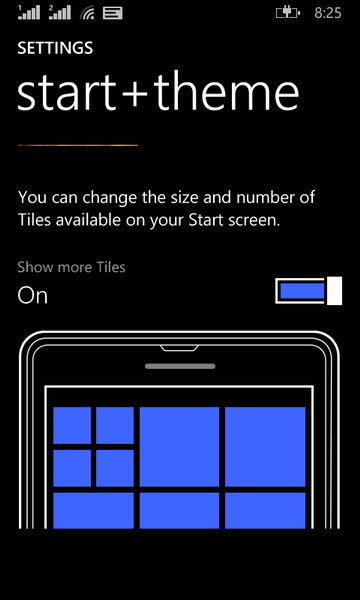
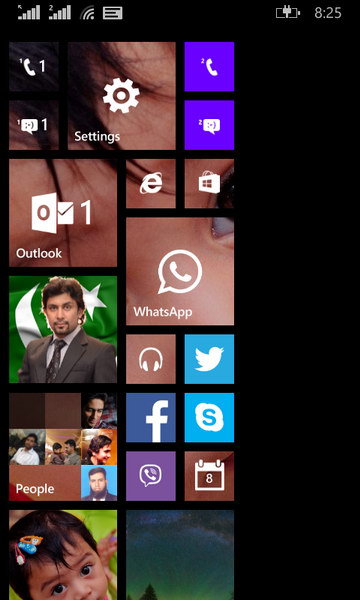
Additionally the new third column on the devices with 5 inch or larger screens is now added to all devices running Windows Phone 8.1. Hence the feature comes to Lumia 630 as well. You can see the 3rd and 4th screenshot above with the settings interface and start screen with extra space on the 3rd column. Practically you will find it more useful and brilliant on the high resolution devices and not like Lumia 630 as the smaller tiles were not really friendly for me.
Windows Phone 8.1 introduces the support of dual SIM into Windows Phone devices and Lumia 630 is the first device that comes in single SIM and dual SIM variants. Following screenshots are from Lumia 630 Dual SIM as we have got one.
Dual SIM Support:
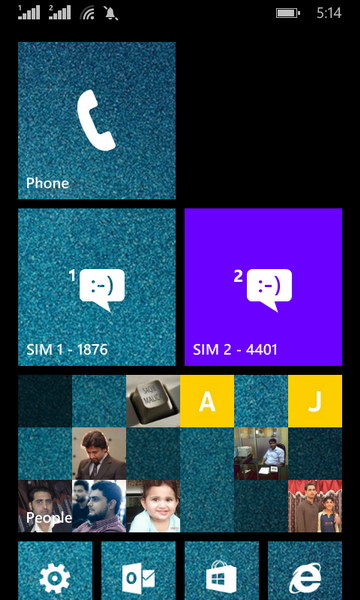
Windows Phone 8.1 gives very distinct way of presenting you with the different tiles for both the SIM cards for calls and messages. By default you can initiate call or text message by tapping on the relevant SIM tile. The Phone app presents the history of calls and other information that is related to the SIM you entered with into the Phone app. 2nd screen below shows the SIM1 history when I tap on the SIM1 Phone tile.


What’s good I found was the option to link both the Phone tiles that will present all the phone calls history from both the SIMs in one screen. When in a Phone app, you have the option to link the it to other Phone tile.
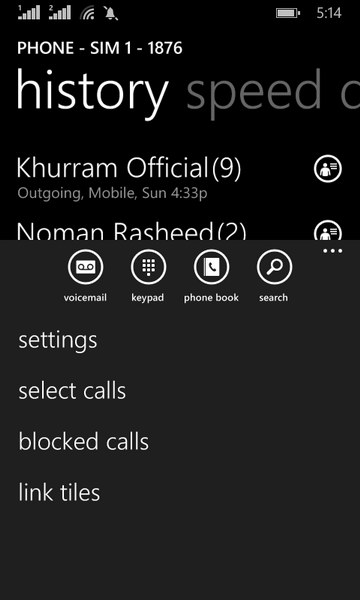
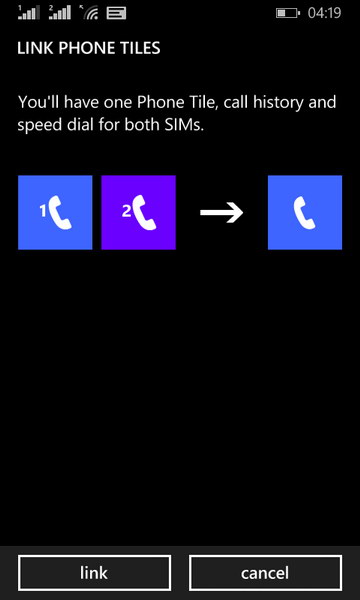
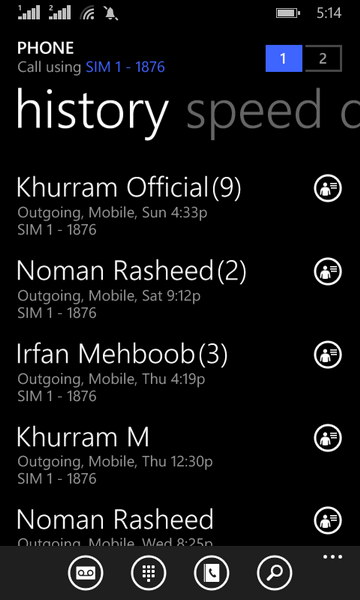
Once linked, you can see all the history in one screen with all the calls from both the SIMs. Every log entry then labeled with the SIM information it’s related to as shown in the most right screenshot above. You can always unlink them if it suites you better.
Messaging behavior is also just like that you can link two separate listing and management of text messages on both of your SIMs. You can choose right in the composer which SIM to use to send this text message.
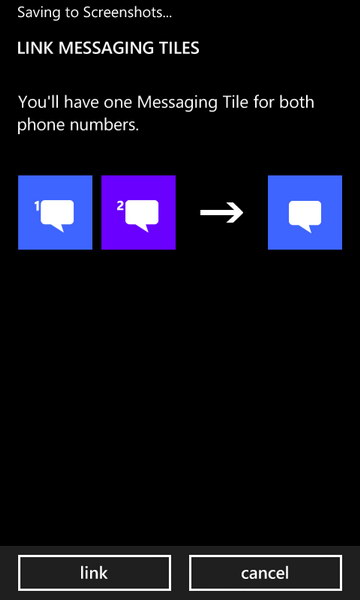
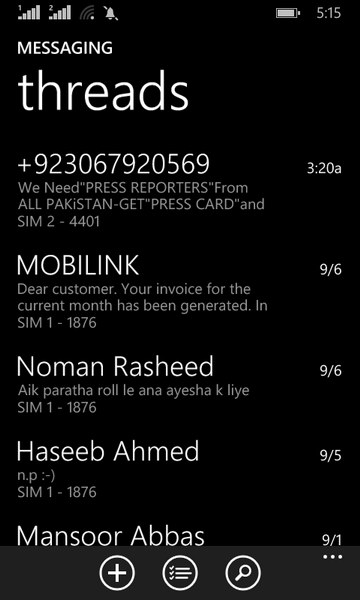
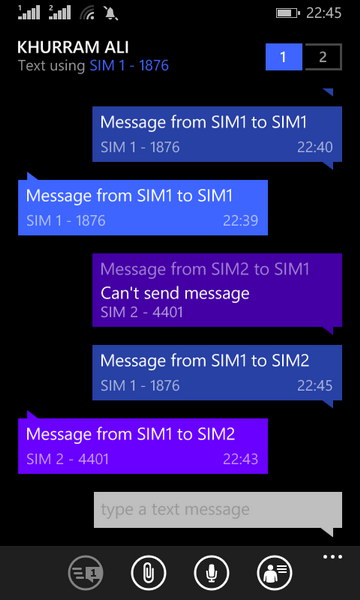
If you don’t like the way of linked information, you can just unlink them back to see individual conversations from both SIMs. When linked, the single conversation also shows messages from both SIMs with distinct colors as of their tiles colors. In above case it’s blue for SIM1 and purple for SIM2.
The dialer screen also serves the option to switch over the SIM you want to dial the number with. The other facility in the dialer interface is the Skype integrity Windows Phone 8.1 introduces in the OS.


When you call a number, the next screen provides you with a few options including the new one introduced in Windows Phone 8.1, “Skype”.
Official: You can switch from a voice call to a video call if you and the person you’re talking to are both signed in to a compatible video-calling app, such a Skype, and both have the app installed on your phones. When you do this, your cellular voice call will end and a new video call will start right from there. This feature isn’t available on Windows Phone 8.
[Video] Hands-on with Dual SIM handling:
Software-rendered Navigation Bar (back, start and search buttons):
The second thing was the software rendered navigation bar with back, start and search buttons. It’s manageable by the OEM according to their phone hardware and display size. As the case with Lumia 630 which comes with the non-standard resolution FWVGA (480 x 854) with the extra 54 pixels at the bottom of the screen, it’s for the software navigation bar. This specific display comes with the “Static software buttons” which appears on the screen without the user’s consent.
The other type of the navigation bar in Windows Phone 8.1 is “User-managed software buttons” that the users can enable or disable from settings as per their desire. Any other supported resolution on Windows Phone 8.1 that is higher than FWVGA does support the User-managed software buttons. Such as Lumia 930, users should be able to enable or disable the navigation bar from phone settings.
With Lumia 630, as it comes with the the Static software buttons that you can not hide or any thing like that. This is same like the hardware Nav bar but appears on the screen when the phone is on. The thing is that it’s personalizable with the colors of it. By default the Nav bar comes with the black (dark) background. You can change it to phone’s background and accent colour.
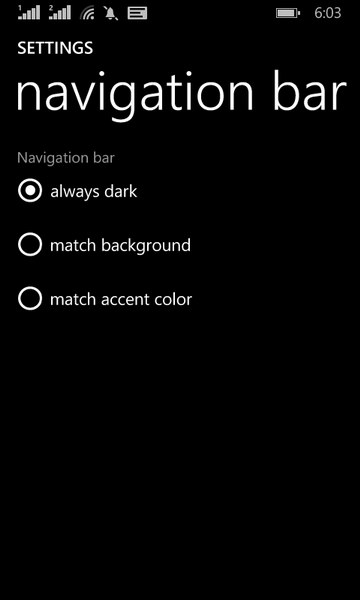
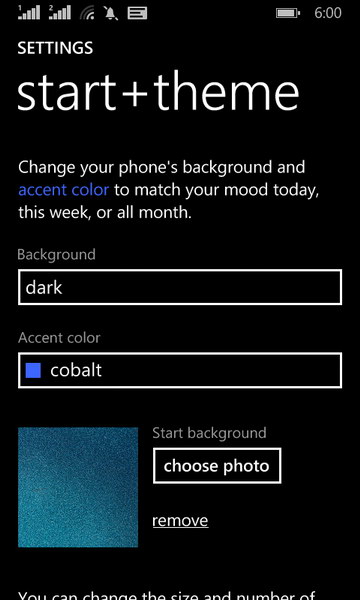
You can change the phone’s background and accent color in the Settings > Start+theme.
Note: Windows Phone 8.1 devices with WVGA resolution (480 x 800), e.g. Lumia 520, will not have such an option for the software rendered navigation bar as we are talking above. Supported resolutions are FWVGA, qHD, WXGA, HD, FHD.
Action Center and Notifications:
The drop-down from status bar of the phone now brings a lot more and user interactive features to Windows Phone 8.1. The Action Center and Notifications are presented in the drop-down screen where you can tap on the individual notification to go straight to the app. The shortcuts to the apps/switches are presented in a row on top. Those shortcuts are not only switches, they are multipurpose. e.g. the WiFi shortcut enables the the WiFi adapter on the phone if it’s disabled in the settings, or otherwise takes you to the settings to choose another WiFi connections.
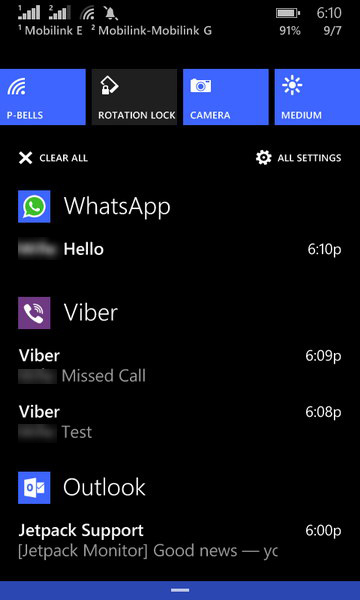
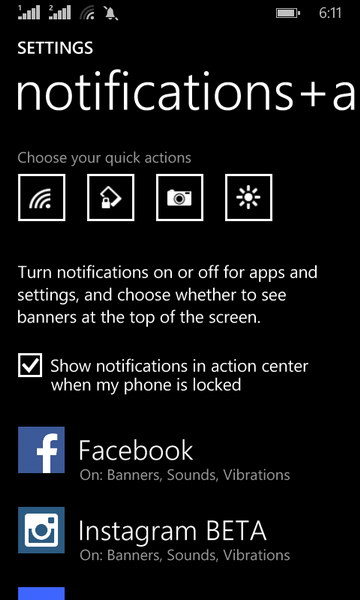
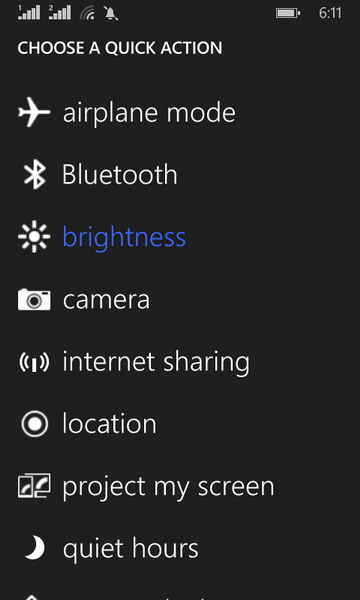
You can change the presentation of this section in Settings > Notifications+actions. You can change the quick actions to be presented on the shortcuts row. You can add/remove apps you want to get notifications on/off the drop-down screen.
Cortana – Personal Voice Assistant:
Last but not the least the Cortana was actually the biggest one of the features in Windows Phone 8.1. It’s a personal voice assistant in Windows Phone more like Siri in iOS. Otherwise its alternatives on Android are Google Now or S Voice on Samsung’s devices.

Cortana takes commands by voice and actually respond in the same way. Where needed, it questions you in order to ask your permission, that also by natural female voice. To me, Cortana responds in more natural way than Siri as well as Cortana is more intelligent in understanding non-native English speakers (of course like me). I mostly struggled with Siri to get me understood.
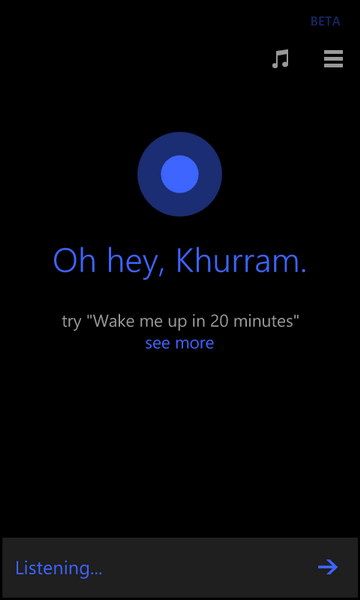
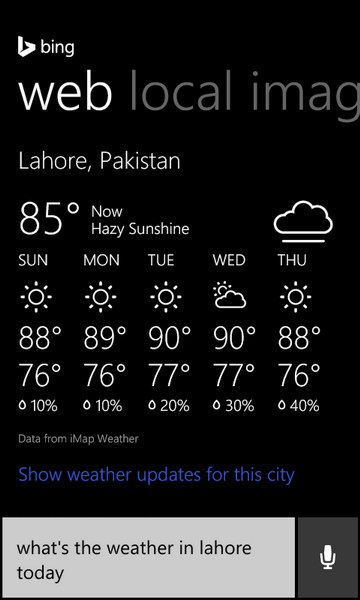
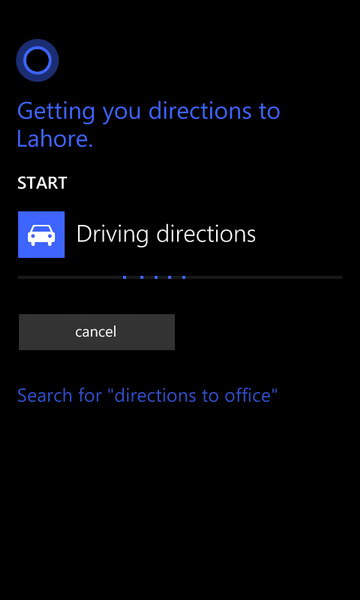
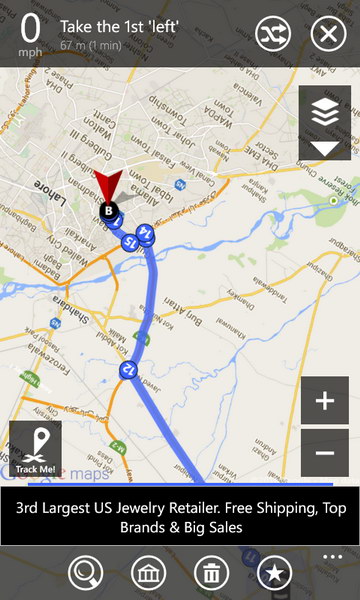
Cortana can initiate anything on your Windows Phone on your voice command. It can open in app, take you to the settings, can initiate a voice or video call, text message to some contact in your phone, give you the driving directions from your current location to your destination, can bring you the weather report of a specific location. It listens to you as you speak naturally in your language before it responds accordingly. You ask her to do something as you ask your buddy in person.
Cortana is actually limited to the US and a few other countries. Officially it’s not yet supported in Pakistan – You must read our tutorial to enable Cortana in Pakistan or in any other country which is not yet officially supported.
There are limitations as you can not customize Cortana to do individual tasks as per your desire. It acts exactly according to your regional formats and language. e.g. the region and language are set to US/English for above screenshots, the weather information is provided in Fahrenheit (°F) for US region. If you want it in Celsius (°C), you will have to choose such as UK/English. However it should not be an issue if you use the Cortana in a supported region as set in your phone.
I am afraid to tell that Nokia Maps and GPS/Navigation is still not available for Pakistan. Hence any third party Maps/Navigation with Google Maps or Open Street Maps can work as your primary GPS/Navigation app on Windows Phone.
Productivity:
Productivity in Windows Phone is just out of the box as before. Improvements always are made and added to the smartphones by software updates via OTA. Lumia 630 as come pre-loaded with Windows Phone 8.1, it brings improvements to the built-in apps like Office products such as MS Word, Excel, PowerPoint. One Note is also built-in.
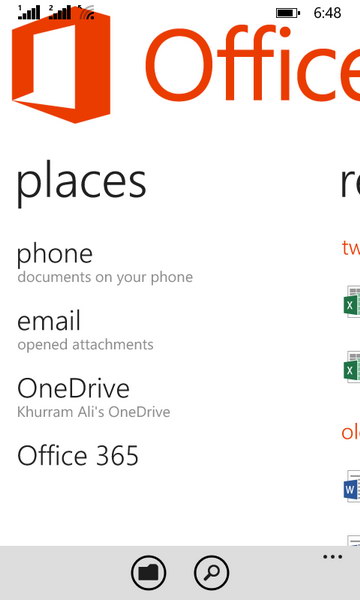
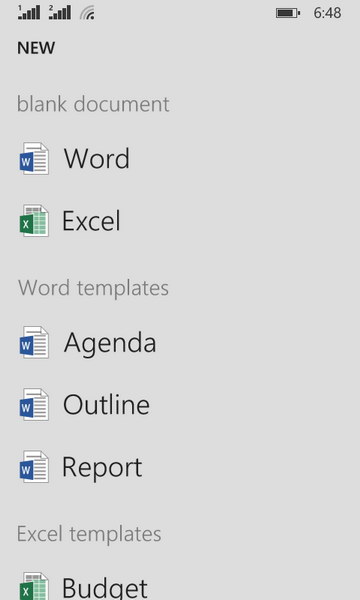
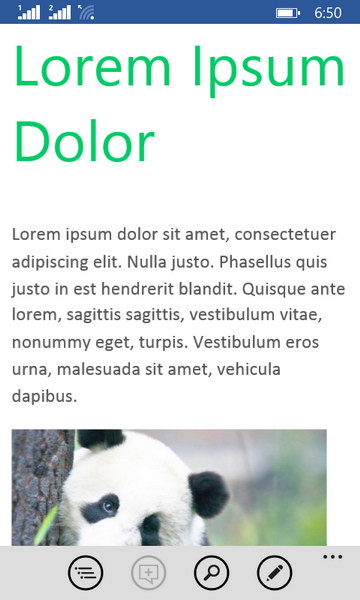
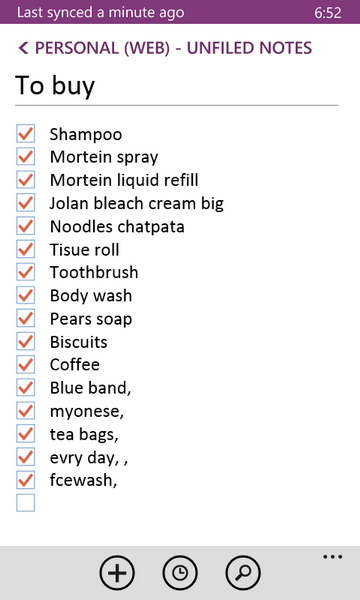
As long as productivity goes on hand held devices, Microsoft suites are much better in comparison. With Windows Phone it of course is a plus point for those who prefer these productivity apps over anything else.
[nextpage title=”Camera, Pictures, Video”]
Camera:
Windows Phone has always come with its native camera app but OEMs also add their proprietary camera apps in their builds. Likewise Nokia built their Nokia Camera app for their Lumia devices which is now under Microsoft’s ownership but still they seem to be working in this department. Nokia Camera, which is now bound to be replaced with Lumia Camera in upcoming software updates. Lumia 630, like other Lumia smartphones comes with the Nokia Camera app pre-installed but with limited functionality.
The User Interface of camera is no different than found previously on Windows Phone 8. You have the same pro features on the interface to control the camera manually.
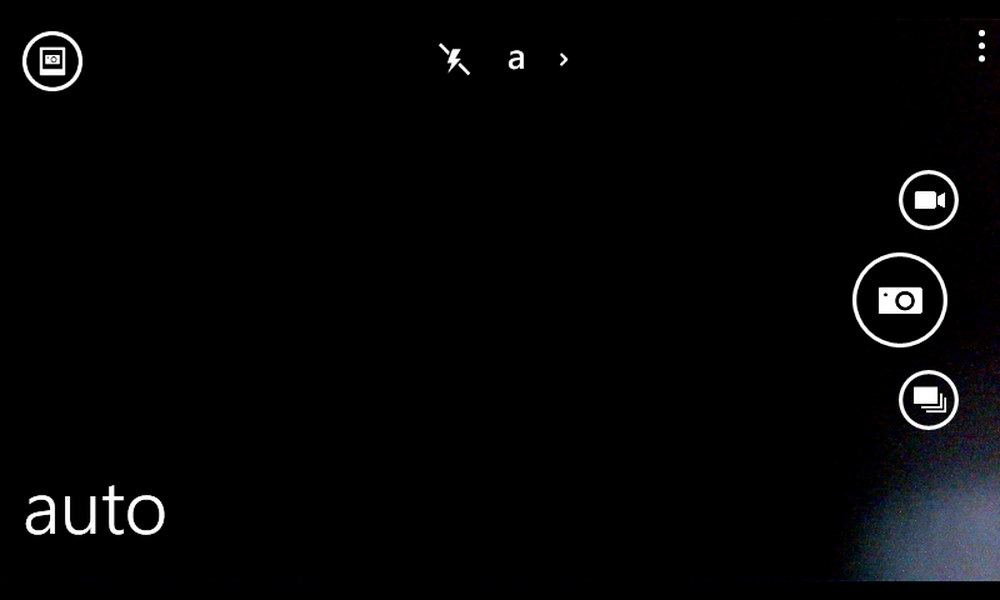
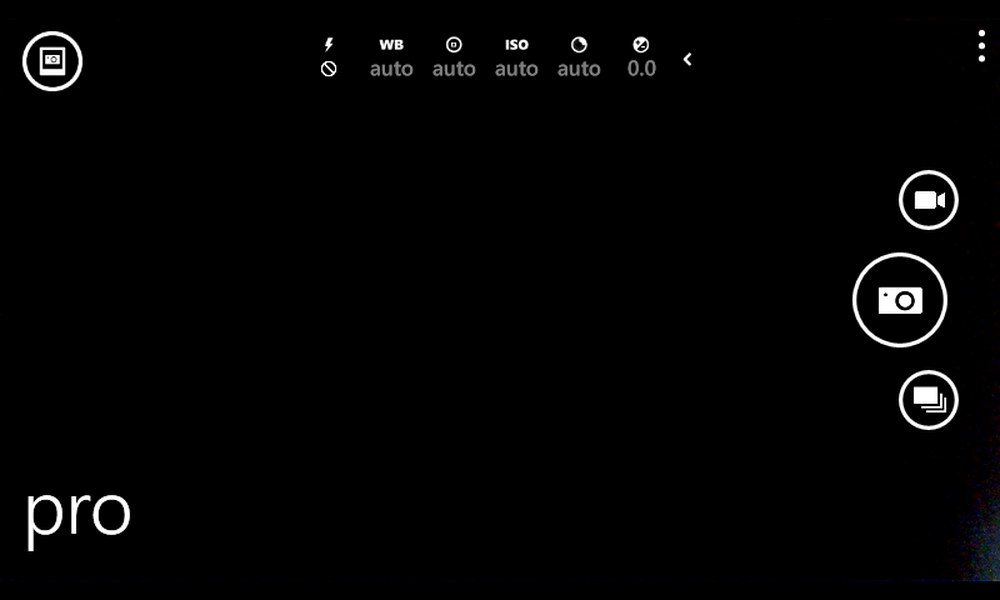
The flash switch won’t work as the Lumia 630 does not have a flash. On the pro interface the shutter speed can go down to 1 second. You can control white balance, focus, ISO speed, exposure value (EV).
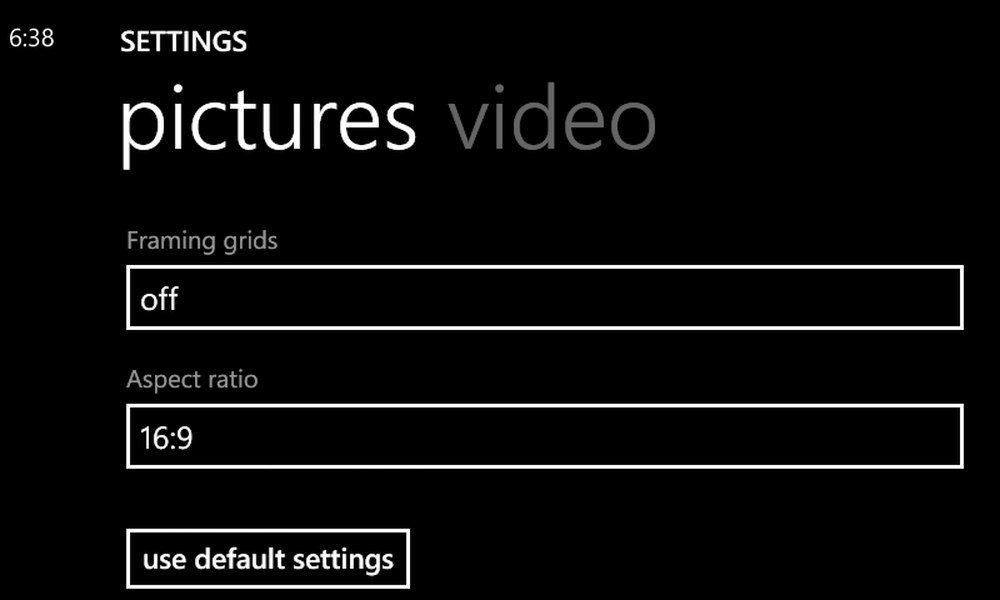
In picture settings there are not much to play with but only a Framing grids or Aspect ratio you can change in the settings. Default settings takes 4 megapixels images at 16:9 aspect ratio. To get 5 MP shot you need to change it to 4:3 aspect ratio. I missed the “Photo review” option in the settings that show the photo right after you capture it.
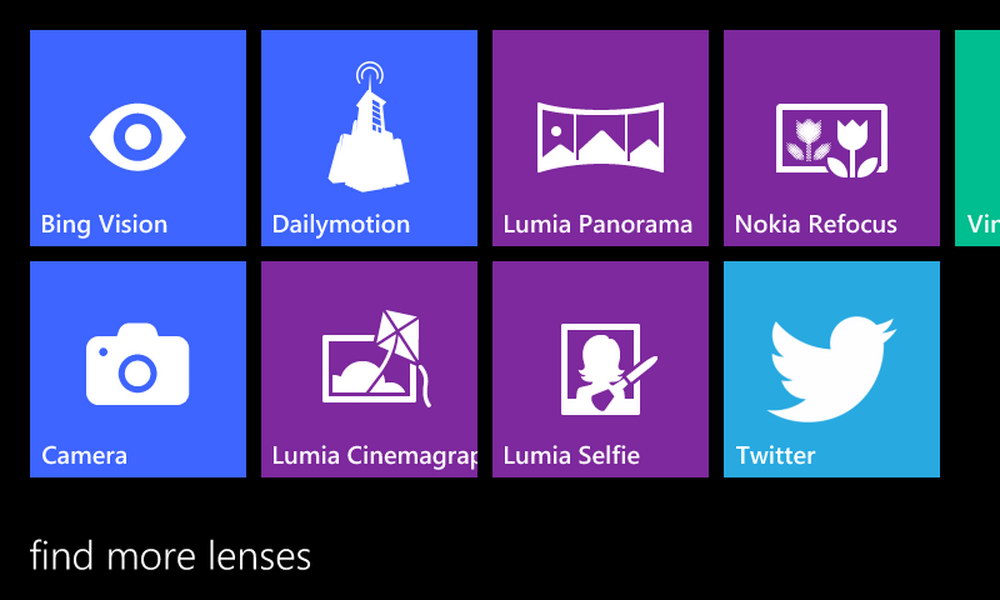
On the other side these are regular Windows Phone lenses you could use to enhance your photos or use them to share your photos on social networks or via email. Lumia Panorama is also provided through lenses as well as a separate app. Others include Nokia Refocus and Lumia Cinemagraphy.
Note: The Bing Vision can only be accessed from the lenses after Cortana is enabled on your Windows Phone. So please keep it in mind.
There is no front-facing camera either on Lumia 630, hence there is no such option on the interface to switch the cameras over.
I must say that the picture quality from its 5 megapixels camera is more than just a regular small sensor camera result. I didn’t remember if I had seen some better quality photos from such a small camera even from Nokia’s range of low-end or budget phones. I really wish it had a flash – even single LED flash would be acceptable on this phone. The lack of flash could even be a big deal for some when they are looking on to some successor phone.
Nokia Camera, the built-in camera specialist app, gives you the opportunity to capture the photos at lower shutter speed that could be useful indoors or in low light but you have to hold the Lumia 630 still to avoid camera shake.
The 5 megapixels camera on Lumia 630 captured the detail that I was not expecting seriously. Color output and the contrast are good to see on photos from such a budget phone. The pictures were sharpened very well without over doing so. Color noise is also well managed that is not looking bad as you see closer, it’s soft.
Take a look at the following sample shots. Some are outdoors with sunny days. And a few indoors. Close ups are impressive though with a little blur on the background.


Lumia 630 is capable of recording videos of 720p resolution at 30 frames per second. It records stereo sound. After looking at the meta information of the recorded video clip I can tell you that it uses the Advanced Video Codec (AVC) for video and Advanced Audio Codec for audio recording. 10 Mbps of bit rate is extremely high at values. Sound was pretty good and the total dynamic range was also not bad. But detail was not so impressive to be liked.
What you can expect from 5 megapixels camera to give you? of course not the whole lot of good detail. But the noise level in the videos were good.
[nextpage title=”Conclusion and the Final Words”]
Conclusion:
Lumia 630 is a healthy deal with the price tag of Rs. 16,800/- I already liked the handy design of the device and specially the Gorilla Glass 3 on such a budget phone. ClearBlack has always been an appreciable factor on Nokia’s devices to help deep blacks. 512 MB of RAM is sure not an appealing feature but on a budget phone it’s good and with Windows Phone 8.1, you really don’t see the numbers of memory as it will only mean when you need to play heavy games– may be a push-up variant like Lumia 525, with 1 GB of RAM come up later to replace Lumia 630. This phone still may keep pace in sales if it get good response like Lumia 520 did.
It’s good replacement upgrade for this price as it also come with Dual SIM options which is of course a better deal for many of you. If you are one of those considering the variety of apps and games in Windows Phone 8.1, then sure it’s a key factory where Windows Phone 8.1 stay behind but if you consider the useful apps then most of them are already on the Microsoft smartphone OS and it’s growing of course.

After using Lumia 630 for quite a while till now, it could be said that the Lumia 630 could be a good replacement of Lumia 520 in every aspect whether it’s the price point or the deal of features to get on. It sure is better and handful design in an upgrade purchase along with the bigger screen size and display features.
Lastly the required accessories like stereo headset and the USB data/connectivity cable would have been appreciated if they were included with the package. This is to remind you that any of these items you want will not be included with the Lumia 630 and you have to buy them for extra price.
We have done our part to bring you as extensive detailed bits from the Lumia 630 as we could in a short time. Next turn is yours; do let us know about your feedback and ask anything about the device in below comments section. We’ll still try to answer that. Also share your thoughts on this review and how can we make it better for you.


