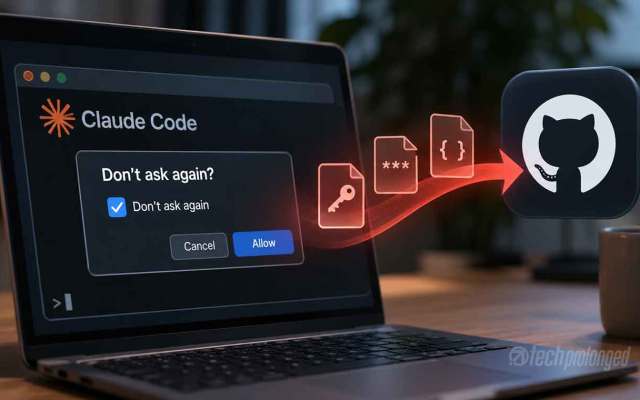
After the report on Claude Code’s “don’t ask again” option leaking secrets, the obvious question is how to work with an AI coding agent without putting your passwords on GitHub. The answer is not one setting. It is a few habits that back each other up, so that one mistake does not become a leak. This guide walks through a setup that takes about half an hour.
When you answer “Yes, and don’t ask again” to a command, Claude Code writes that exact command text into a file in your project folder, .claude/settings.local.json. If the command had a real password or token typed into it, the secret now sits in a plain text file. Commit that file and the secret is in your Git history for good.
Step 1: Use a separate account and one private repository
- Create a new GitHub account just for the project, not your personal or work account.
- Create one repository and set it to Private. Under Settings, then Collaborators, check that nobody else has access.
- Install the Claude GitHub app on that account and, on the repository access screen, choose Only select repositories, then pick that single repository. Do not choose “All repositories”.
- Read the permission list before you accept it, and review any later request to change it. If an update asks for more than you expect, decline and ask why.
A private repository is only a first line of defence. It can be made public by mistake, and anything already committed stays in its history. Treat it as a repository that might be seen one day.
Step 2: Keep secrets out of commands and files
- Store each secret as an environment variable. On Windows,
setx NAME valuesaves it for your user account; on Mac and Linux, put it in your shell profile or a secret manager. Open a new terminal afterwards so it loads. - In commands, use the variable name (
$YOUR_APP_PASSWORD), never the value. Then an approval saved by Claude Code contains only the name. - Never choose “don’t ask again” for a command that contains a literal password, token or key. Approve it once, or rewrite it to use a variable.
- Keep
.envfiles out of Git and tell Claude Code not to read them. In.claude/settings.jsonadd a deny rule such as{"permissions": {"deny": ["Read(./.env)", "Read(./.env.*)"]}}.
Ignore the local settings file. Claude Code adds the file to a global ignore list on your own machine, but that list does not travel with the project and does not stop a file that is already tracked. Add these lines to the project’s .gitignore yourself:
.env
.env.*
.claude/settings.local.json
.claude/*.local.*
If you committed it earlier, stop Git tracking it by running git rm --cached with the file path, then commit the change. Assume anything inside it is exposed (see the last part of step 3).
Step 3: Scan every commit and replace anything exposed
Scan for secrets. Add a scanner so a slip is caught before it leaves your computer.
- Install gitleaks, which is free and open source.
- Create a file named
.git/hooks/pre-committhat runsgitleaks git --pre-commit --staged --redact. On a recent version this blocks the commit when it finds something that looks like a key. - Check what GitHub offers for your plan. Secret scanning and push protection are free on public repositories, but on private ones they may need a paid add-on, so the local hook is the safer base.
Scanners are not perfect. Researchers who studied this leak found that popular scanners missed hundreds of the affected files, because a password after a flag such as -p has no recognisable shape. That is why keeping secrets out of commands matters more than the scanner.
If a secret may have leaked, replace it.
- Revoke and replace the credential first. Deleting the file does not help, because Git keeps the old version.
- For a WordPress application password, open your profile, find Application Passwords, revoke the entry and create a new one.
- For a GitHub token, go to Settings, then Developer settings, and delete or regenerate it. For a cloud or database key, rotate it in that provider’s dashboard.
- Update the new value in your environment variables, not in the project files.
Also remember that conversation logs and approvals on your own computer are plain text. Keep the machine updated and protected, because malware could read them just as easily as a stranger on GitHub.
Does this apply to other AI coding tools?
The file name is specific to Claude Code, but the habits are not. Any coding assistant that can run commands, remember approvals or keep chat history can store a secret you hand it. Cursor, Gemini CLI, Codex CLI, Aider, GitHub Copilot and similar tools differ in where they keep that data, so check each one’s documentation for its approval list, history folder and settings files, and add them to .gitignore if they live inside the project.
- Several tools have their own ignore file that hides paths from the assistant, such as
.cursorignorefor Cursor,.geminiignorefor Gemini CLI and.aiderignorefor Aider. List your.envfiles and key folders there. - Use the same variable-name rule everywhere: a command that mentions
$TOKENis safe to remember, one that contains the token is not. - Install the GitHub app or connector of any tool on one repository only, and read its permission list.
- A commit scanner works the same for every tool, because it checks what you commit, not who wrote it.
The short checklist:
- Separate account, one private repository, app limited to that repository.
- Secrets only in environment variables or a secret manager.
- Local settings and
.envfiles listed in.gitignore. - A scanner on every commit, and no “don’t ask again” on commands with secrets.
- Any exposed credential revoked and replaced the same day.
For the full list of what the permission system can allow and deny, see the Claude Code settings documentation.